
How to generate your API key
Create an API key from the FirstLeads dashboard to authenticate your requests and connect the webhook lead feed to your systems, in under a minute.
Quick Answer
To generate a FirstLeads API key, log in and hover the left-side ribbon to expand the menu, then open Settings → API Keys and click Create Key. Name the key, set Expires to Never for a permanent integration, and click Create Key. Copy the key when it’s shown, it appears only once, and store it securely. The key authenticates your requests and connects the webhook lead feed to your systems.
Generate an API key in 5 steps
Open the left-side ribbon
After logging in to FirstLeads, move your mouse over the left-side ribbon to expand the navigation menu.
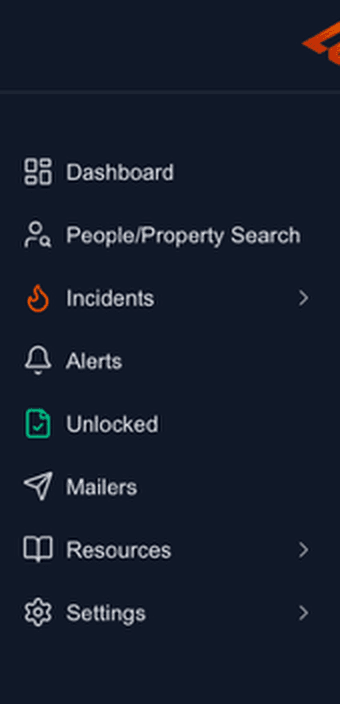
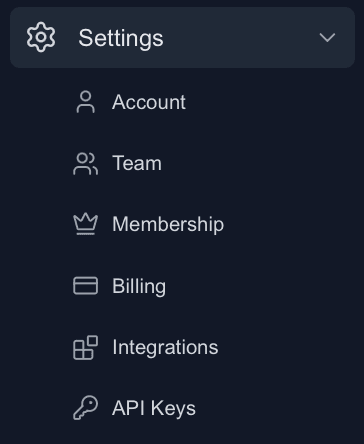
Go to Settings → API Keys
Open Settings from the expanded menu, then choose API Keys from the drop-down.
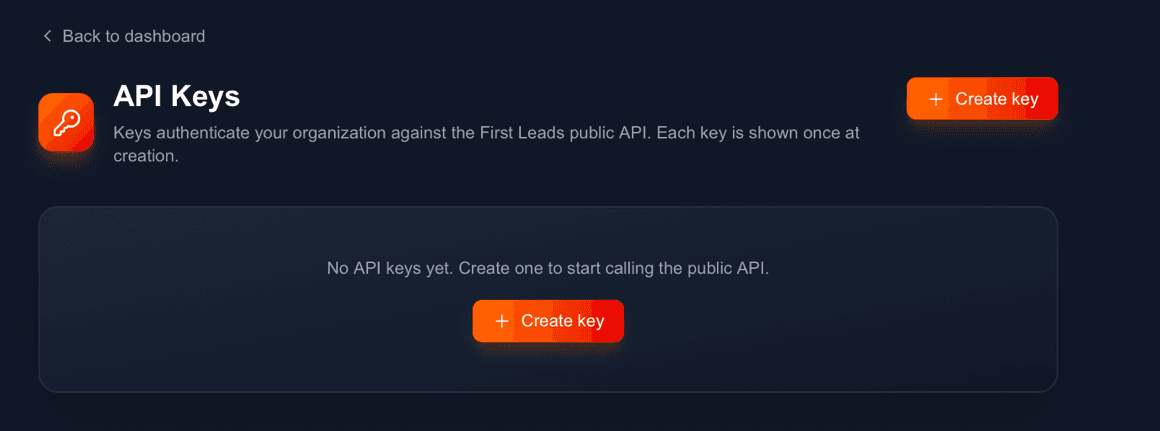
Select Create Key
On the API Keys screen, click Create Key to open the dialog that generates a new key for your organization.
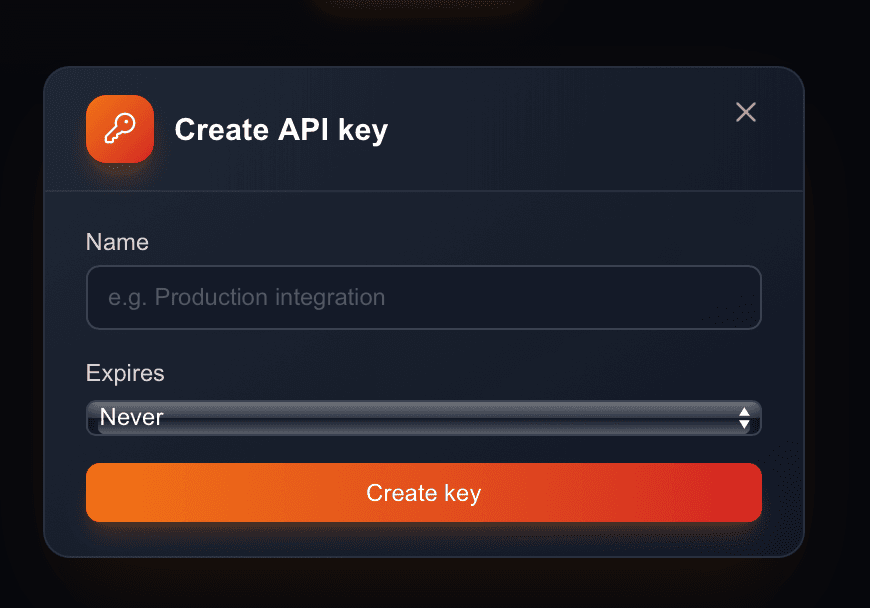
Name it, set expiry, and create
Enter a name for the key (for example, “Production integration”), set Expires to Never for a permanent integration, then click Create Key to generate it.
Copy and store it securely
Your key is shown once at creation, copy it immediately and store it somewhere secure like a password manager. Treat it like a password: never commit it to source control or share it in plain text.
Keep your key safe. Your API key grants access to your FirstLeads data: treat it like a password. Copy it when it’s shown and store it securely; don’t commit it to source control or share it in plain text. If a key is ever exposed, delete it from the API Keys screen and create a new one.
Next: set up your webhook secret
With your key created, configure your Webhook Secret to start receiving leads at your own endpoint. Full setup steps and endpoint details live in the API docs.
- Authenticate every request to the FirstLeads public API with your key.
- Pipe new leads straight into your CRM or automations as they’re verified.
- Rotate or revoke keys anytime from Settings → API Keys.
Frequently Asked Questions
Ready to connect the lead feed?
Generate your API key, set up your webhook secret, and start piping verified leads straight into your systems.