
How to set up a lead alert
Create a targeted alert so new verified leads in your area are delivered straight to your team: filtered to exactly the incidents you work.
Quick Answer
To set up an alert in FirstLeads, open Alerts from the left ribbon and click Create Alert. Name it, keep Lead Created and Lead Updated checked, pick your state and the counties you cover, choose your incident and property types, and set a Smart Filter (start with Confirmed only for the highest-confidence leads). Toggle Slack on and pick a channel to deliver every matching lead to your team in real time.
Set up an alert in 5 steps
Go to Alerts
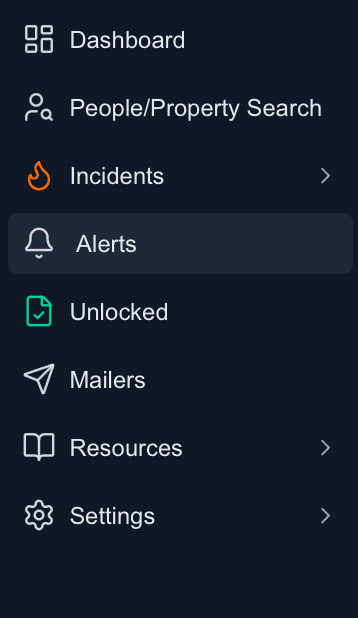
From the left ribbon in your FirstLeads dashboard, open Alerts, then click Create Alert to start a new one.
Name it and set your area
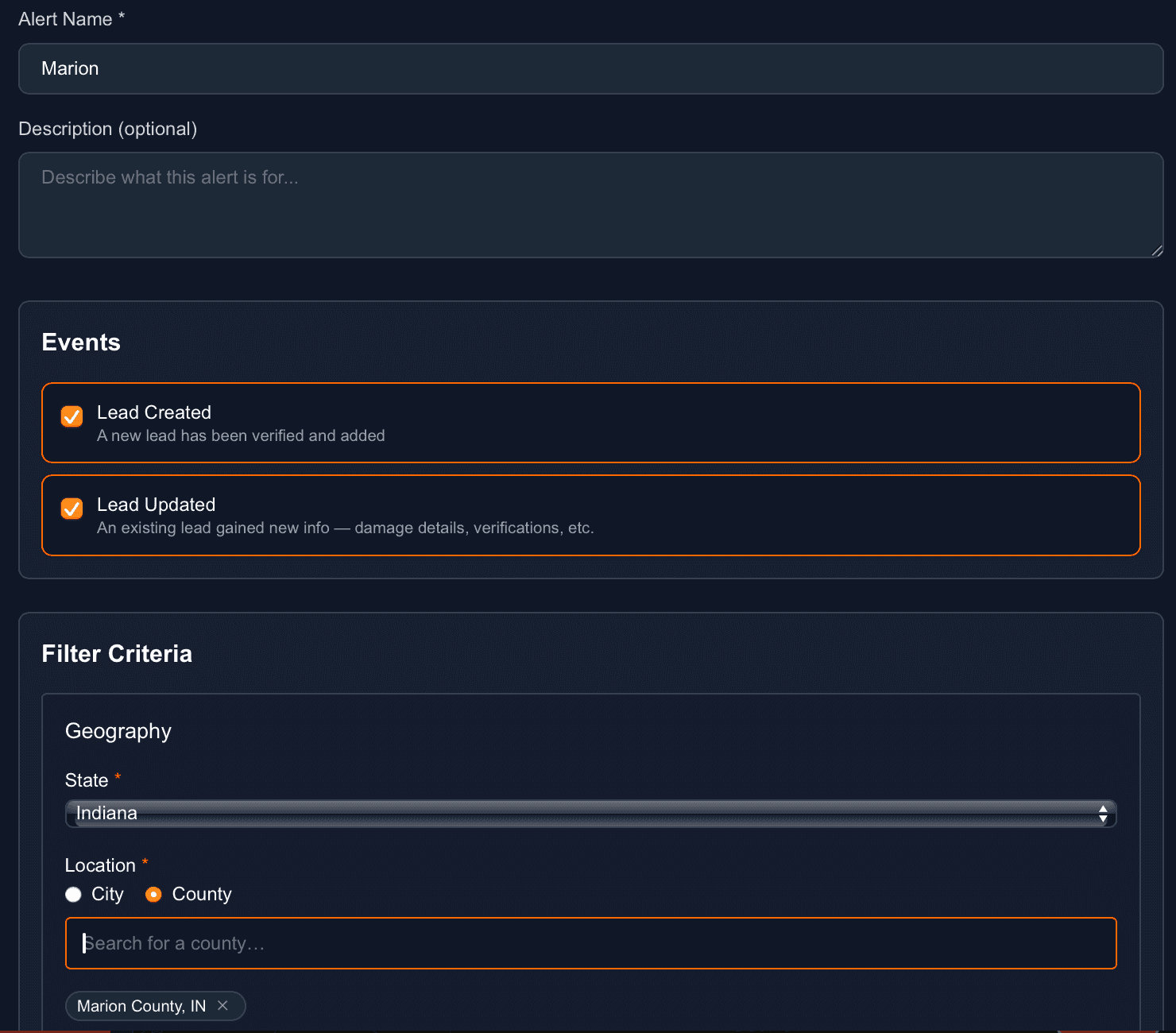
Give the alert a name (for example, “Marion”). Under Events, keep Lead Created and Lead Updated checked. Under Geography, pick your State, choose County, then add the counties you cover. Each city or county counts toward your plan's territory allowance, however you group them into alerts.
Choose incident and property types
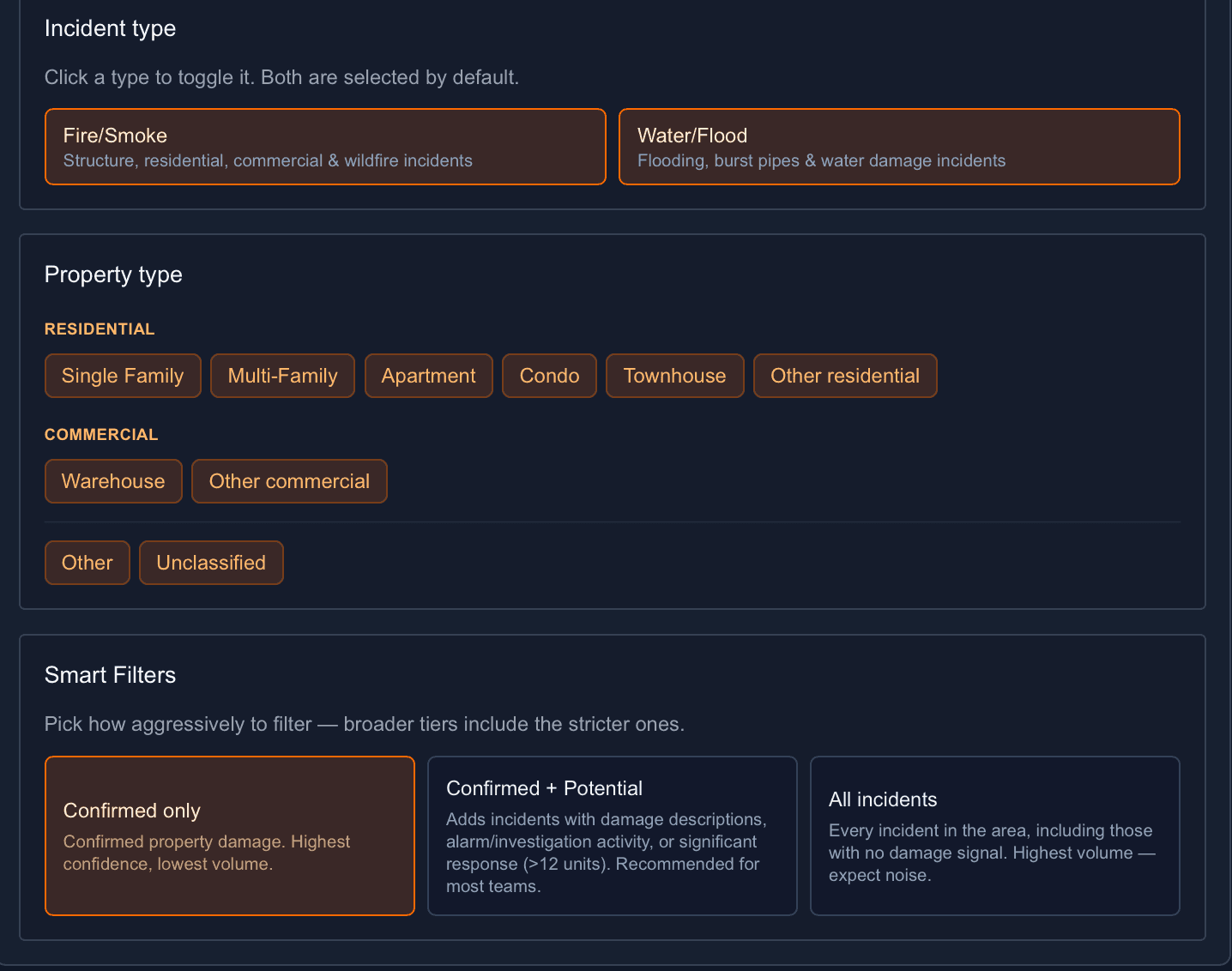
Select the Incident types you work: Fire/Smoke, Water/Flood, or both. Optionally narrow by Property type (residential or commercial) so only the properties you service come through.
Set your Smart Filter
Pick how aggressively to filter. Confirmed only delivers the highest-confidence, lowest-volume leads; Confirmed + Potential adds damage descriptions, alarm/investigation activity, and significant responses; All incidents sends everything in the area. Start with Confirmed only and loosen later if you want more volume.
Route alerts to Slack
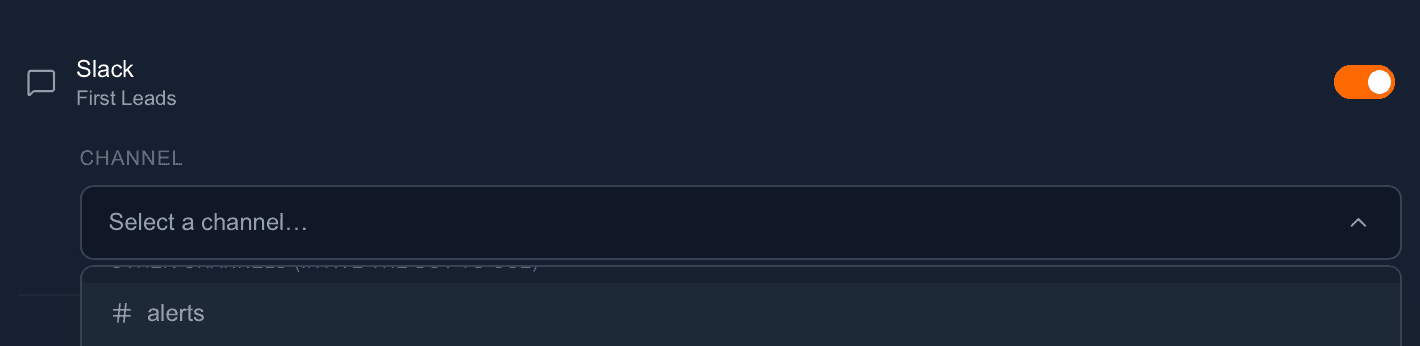
Connect your Slack account to FirstLeads and create a channel (for example, #alerts). Toggle Slack on, then select the channel to route every matching lead straight to your team.
Cover your whole area. Add every county you service to a single alert, or spin up separate alerts per market: whatever fits how your team divides territory. Duplicate an alert to reuse its settings.
Deliver matching leads straight to Slack
Connect Slack once, then route each alert to a channel so the whole team sees new leads the moment they’re verified, no inbox digging, no missed incidents.
- Create a dedicated channel like #alerts and point one alert at it per market.
- Every matching Lead Created and Lead Updated event posts in real time.
- Start with Confirmed only, then loosen to Confirmed + Potential for more volume.
Prefer real-time delivery to your own systems? Generate an API key and set up your webhook secret to pipe leads straight into your CRM or automations. See the API key setup guide and API docs.
Frequently Asked Questions
Ready to catch your next lead first?
Create an alert for your counties and start receiving verified fire and water damage leads the moment they land.