
Integrations · Email
Fire Alerts in the Inbox Your Team Already Checks
Email is the simplest way to get fire alerts landing somewhere your whole team already looks, ready to go in a couple of steps.
Quick Answer
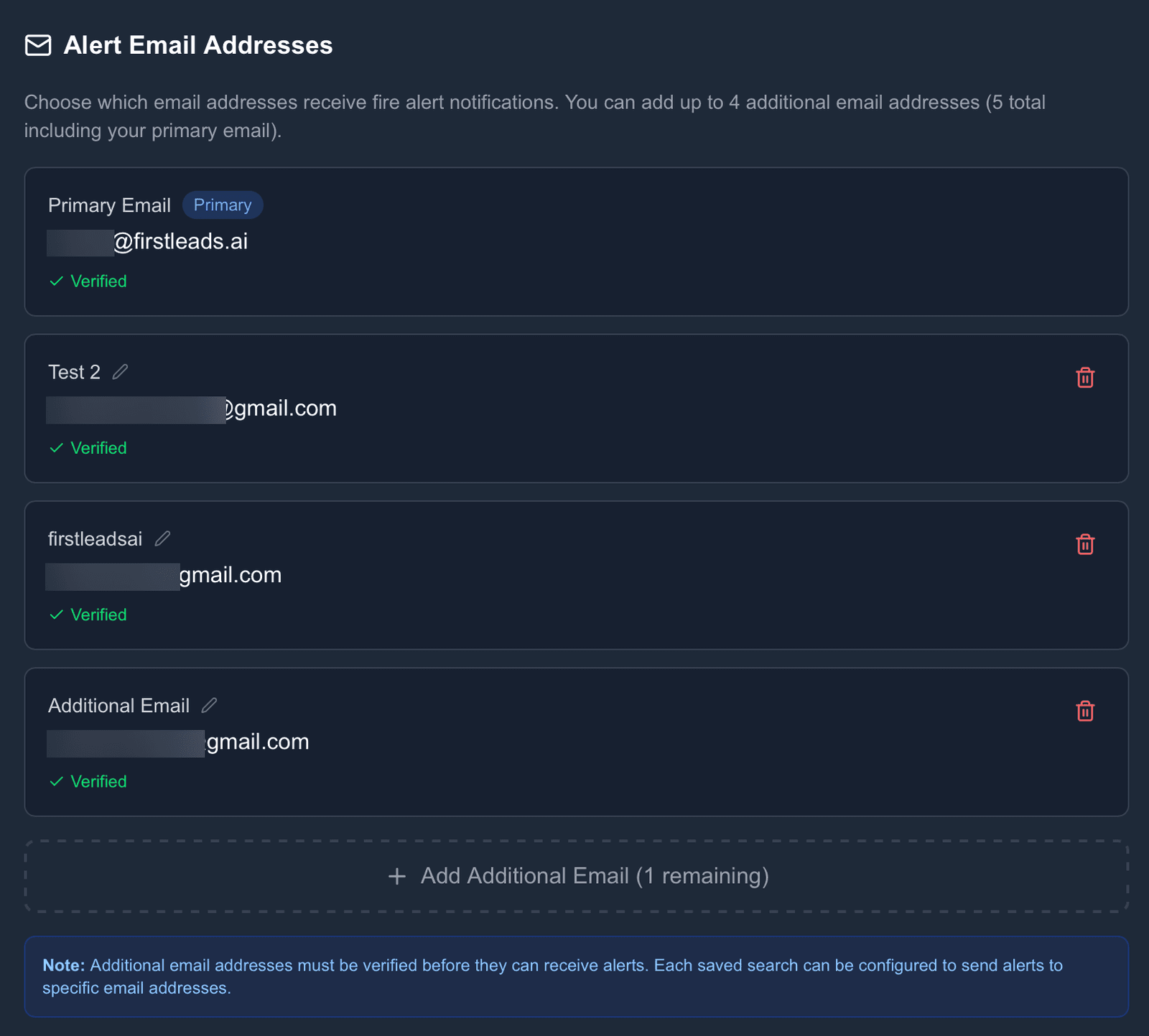
Your primary email, the one tied to your FirstLeads account, is added and verified automatically. Beyond that, you can loop in up to 4 additional addresses, which is ideal for teammates or a shared operations inbox.
Setting up email notifications
Open the Email integration
Go to Settings → Integrations, find Email in the list, and click Manage to open your Alert Email Addresses.
Add and verify an address
Click Add Additional Email, enter the address, and give it a label if you like, handy once you have a few. FirstLeads sends a verification email; click the link, and a green Verified checkmark appears. Unverified addresses cannot receive alerts, so this step is not optional, but it takes a minute.
Assign addresses to your alerts
Head to Alerts and choose which alerts notify which addresses, that is where the connection actually turns on for a specific search. Once selected, alerts start arriving the moment a match comes in.
Works with
Be first on scene. Every time.
Book a demo of FirstLeads and get real-time fire and water damage incident alerts for your territory. No contract, no setup fees.
Frequently Asked Questions
Keep exploring
- Building the alerts your inbox subscribes to
- Slack, for teams that want push + threads
- SMS, for alerts as text messages
See every connection on the FirstLeads integrations page.